
Adobe Game Jam San Francisco!
September 27th, 2012
 Adobe is running the first official Game Jam in San Francisco and you are invited to join us!
The Game Jam will be held in the Adobe Office San Francisco (Townsend 601) and will kick-off on Friday (19th October 2012) around 4 PM and end on Saturday evening (20th October 2012).
The event is free to attend; snacks and beverages will be provided.
Let’s build some great Stage3D games together! Lee Brimelow, Renaun Erickson, Thibault Imbert and I will be there the entire time. We are looking forward to see you.
Visit Adobe Game Jams webpage for more information and registration.
You can also read Renaun’s blog post and Lee’s blog post about the game jam.
Square Enix RPG from Japan in Flash/Stage3D
September 25th, 2012
Square Enix just launched a playable online teaser of their upcoming Stage3D based RPG game.
The game is built using Alternativa 3D engine.
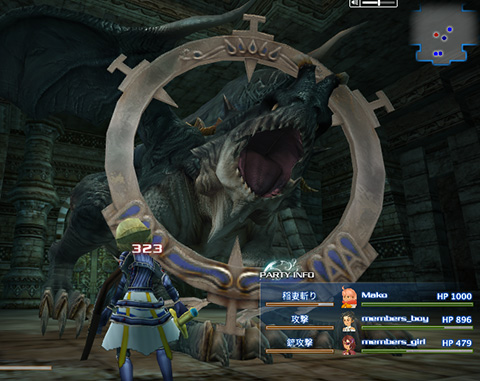
Watch the video showing the sneak peek:
VisYOUalize Yourself in Stage3D (iOS/Android/Web)
September 21st, 2012
Very nice and unique audio-visualizer for DENON Headphonesby BBDO NY and Jam3 built with Flash/Stage3D and ported to iOS and Android via Adobe AIR.
Check the VisYOUalizer website
Download for iOS
Download for Android
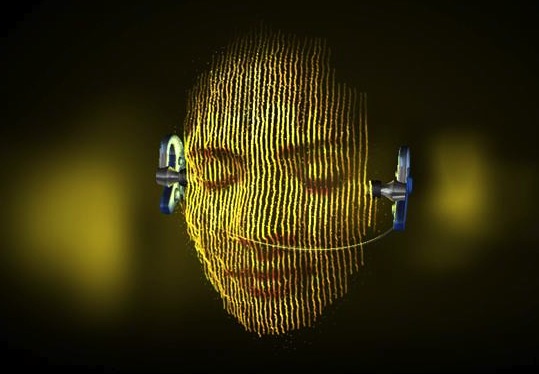
The Production Case Study:
Feathers: Stage3D & Starling-based UI controls
September 18th, 2012
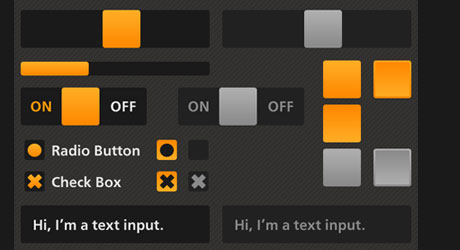
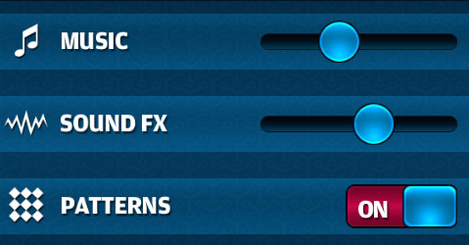
Lightweight, fast, efficient, skinable.
Are you building Flash/AIR games or apps and looking for UI controls library? Well, Feathers UI by Josh Tynjala is a total must have.
Check it out at FeathersUI.com

Wonderputt for iPad - fabulous mini golf game built with Flash released
September 13th, 2012
The well-known and award-winning fabulous mini golf game by Reece Millidge from UK has been launched on iPad and is available for $0.99.
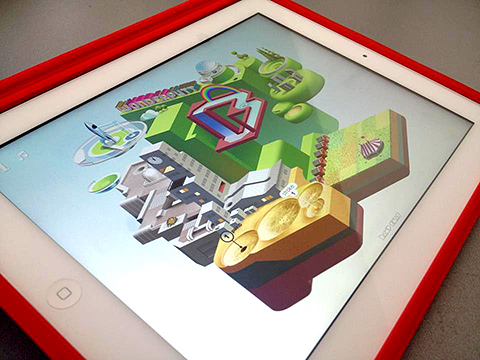
The game is built with Adobe Flash and compiled using Adobe AIR 3.4 for iOS. It uses GPU renderMode, supports Game Center via AIR native extension and looks wonderfully crisp in retina resolution on iPad3.

(*Click to open full image)
I had a quick chat with Reece about the game:
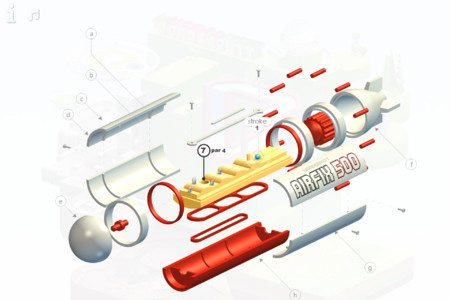
Wonderputt was actually built on the framework of Adverputt but this time I wanted a rich and animated environment, free of integrated brands. So as it had to be a full static isometric screen, I naturally looked towards styles and illustrators that use this perspective to full effect. Everything from old encyclopedia illustrations and their geographic cross sections, to bar chart statistics and air fix kit assembly info graphics. Isometric view also allows for playful illusions with space and structure, so M.C.Escher was an obvious influence there. The final look ended up like a fusion between the rich bustling cityscapes of Eboy and the sublime light & airy landscapes of Josh Keyes.
How long did it take to complete Wonderputt?
Initially I had estimated a two month production period, but it ended up taking almost six months over a year period between contract work. This happened mainly because the game outgrew the initial concept and size.
You can look back over the process in my development diary.
What tools did you use to build the game?
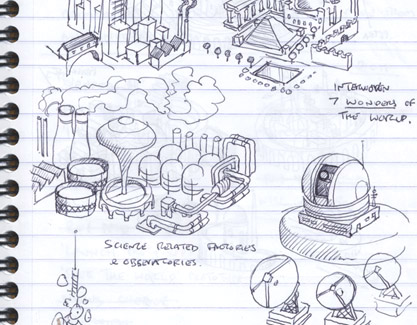
3DStudioMax (for small objects) but mainly Adobe Photoshop, Flash Professional, AIR 3.4, Flash Develop and cheap WHSmith note pads.
How did you implement the physics?
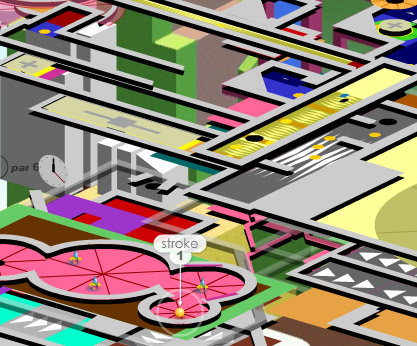
A top view level design was assembled from nine height layers in Flash to be used for ball collision detection. These layers were skewed to create the illusion of 3D space and the ball simulated using basic physics, my own engine. When the ball collided with each ramp, the height and force on the ball was calculated geometrically. After the levels were playtested in this skeleton form, a screen grab was captured and painted over in Photoshop to build the illusion of a fully realised 3D world. Animated transitions between each hole were done directly in Flash using a mixture of bitmaps and 2D vector graphics.
How did you bring your web-based game to iOS?
Tom Krcha convinced me it could be done, even though I remained sceptical knowing how unorthodox Wonderputt’s methods were. So with Tom’s guidance I went through the process of optimizing the game, converting a lot of vectors to bitmaps and reducing alpha use and blend modes etc. Then by accident we discovered it worked at Retina resolution on the new iPad3. So I added double sized textures to dynamically swap in depending on the device.
The new crisp graphics and improved performance using AIR 3.4 resulted in an even better version than the original!
Was the game up for any awards?
It won Best Physics Game on Jayisgames, but it really took me by surprise when it became a finalist at the IGF and then the Develop Awards this year for Visual Art. I’m also quite chuffed that its one of Kotaku’s 6 Best Games on Web Browsers.
What are your next plans?
The sequel to my first Flash game Icycle is up next. That’s going quite well, but distractions are constantly pushing back completion. Hoping to release that at Christmas or early next year online and on iOS with Chillingo. I’m extremely pleased with the port of the original, so I plan to release that together with the sequel. After that, too many projects to know which to start 
Wonderputt for iPad trailer: